Help › Project team guide
Project team guide
For the client's team and CCS: reviewing what vendors submit, keeping sites and tasks in order, reading the reports and administering Vertex. Vendors have their own guide.
Roles and pages
Sign in with Microsoft or Google using the address you were invited with. What you see depends on your role:
| Role | Can |
|---|---|
| Reviewer, Designer, Real Estate, Field Inspector | Review submissions they are in a reviewer group for; see every site, task, submission and report. Designer and Real Estate also edit sites and projects. |
| Admin | All of the above, plus decide any submission directly, change results, set statuses, manage people, the task catalog, templates, email and settings. |
| Read-only | See everything, change nothing. |
| Notification only | Can't sign in. Gets the emails for the notification lists they're on; added without an invitation. |
The menu: Dashboard, Projects, Sites, Tasks (Submissions and All tasks), Reports and, for Admins, Admin. Help at the top right opens this guide.
Dashboard
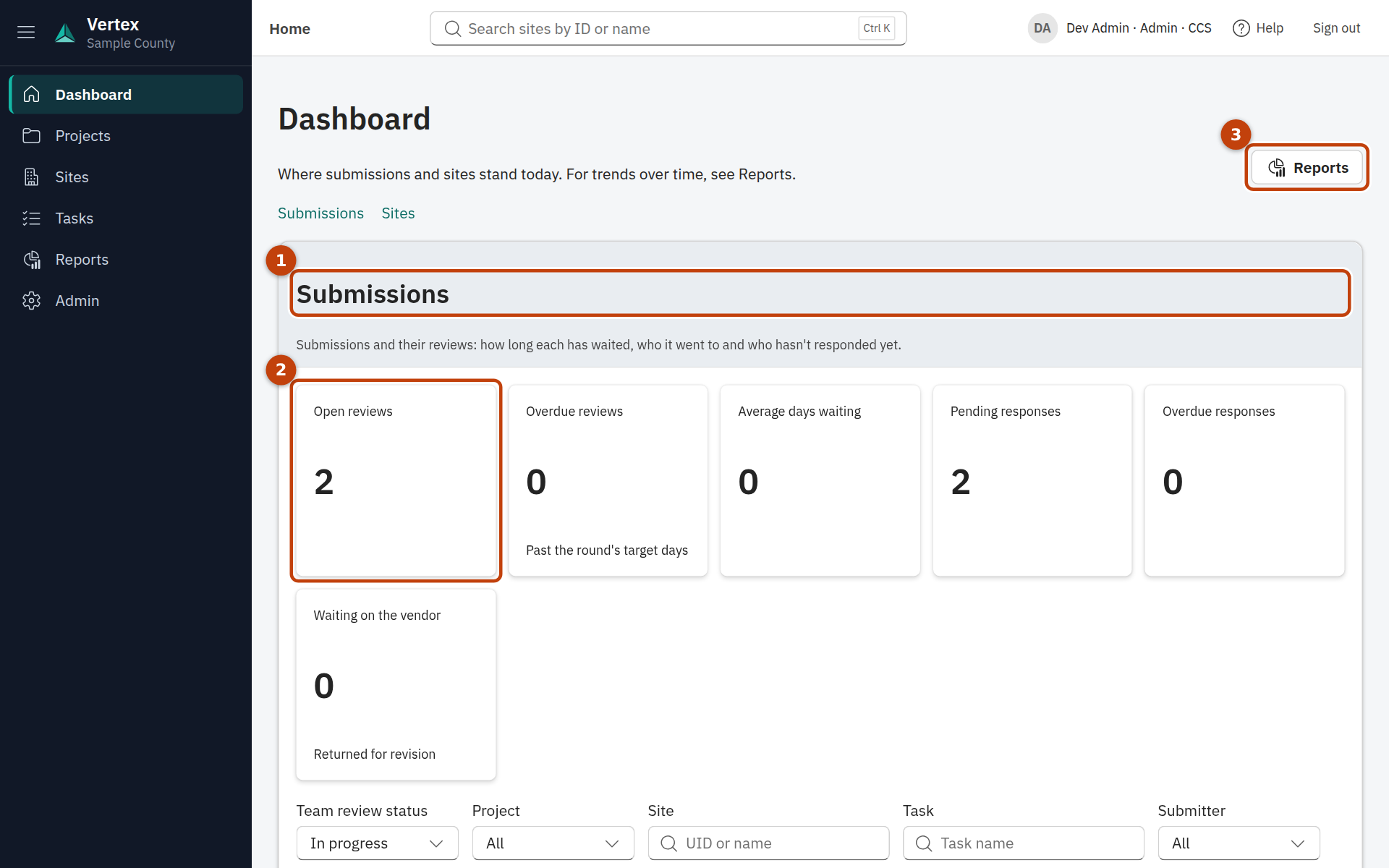
- 1. Submissions: open and overdue reviews, who hasn't responded, what waits on vendors, then the list with filters. The Sites section below shows progress by project and tracking group.
- 2. The tiles are today's counts.
- 3. Reports has the trends over time.
Review a submission
A submission is reviewed in one or two rounds, as the project's task settings say. In round 1 everyone in the task's reviewer groups responds; with two rounds, one approver in the round 2 group then returns one decision to the vendor.
- Open Tasks. Waiting on me lists the reviews that need you; In review everything open, with the stage, who it is waiting on and days against the target.
- Click the task to open the review: the review PDF in the middle, the decision buttons above it, the task, comments and history in the rail.
- Mark up the drawing with the toolbar (highlight, pen, rectangle, circle, text). Markup saves as you draw and everyone sees everyone's. Internal comments stay with the team; vendors never see them.
- Round 1: Approve or Revision needed, with notes for the vendor. Round 2: Approve & notify or Return for revision; the app drafts the vendor's summary from round 1's notes (without names), and it goes with the redlined PDF. Edit it or leave it as drafted.
- Needs revision always tells the vendor what to change. It needs markup on the drawing or a note for the vendor; in round 1, your own markup or note. This holds for Admins too: rejecting, changing a result or setting a task to Needs revision needs a reason unless the drawing has markup.
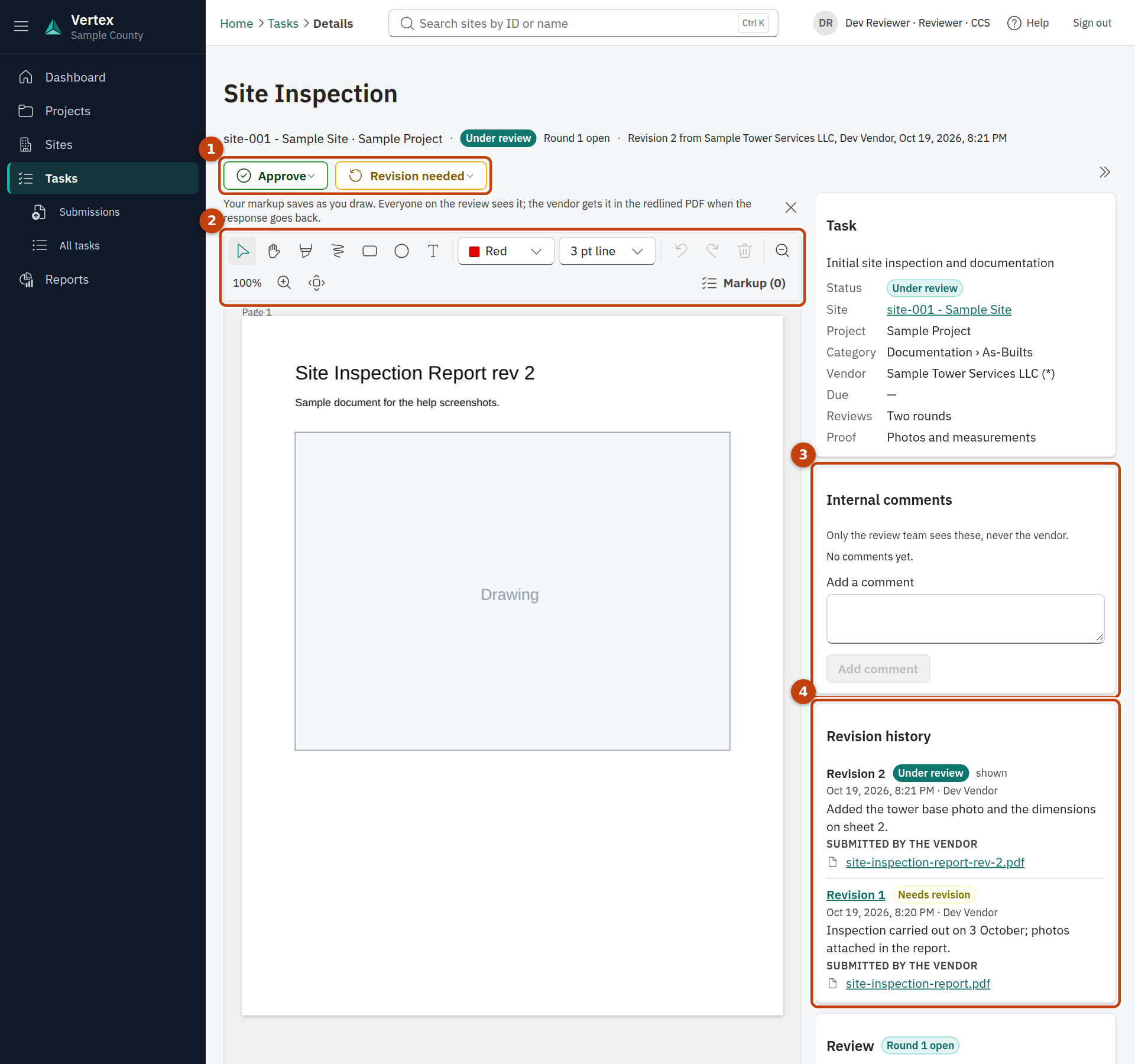
- 1. Decisions for this round. Each opens a flyout with the notes and the confirming button.
- 2. The review PDF with the markup tools; the Markup button lists everyone's markup.
- 3. Internal comments: for the team only.
- 4. Revision history and the review's rounds, newest first.
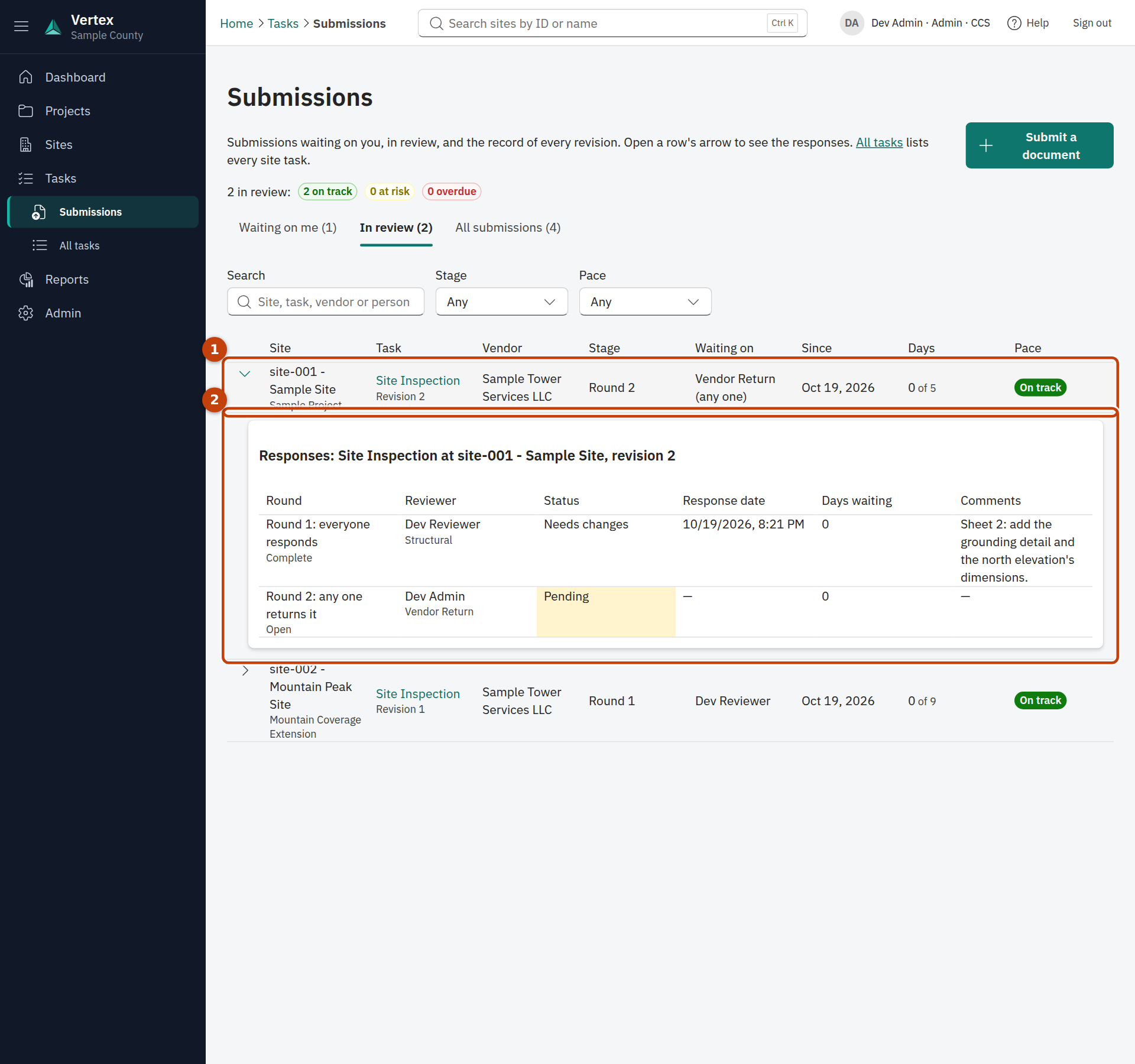
- 1. Stage, who it is waiting on and days against the target, coloured on track / at risk / overdue.
- 2. The arrow opens each round and each reviewer's response under the row.
Tip:With one round, the responses combine on their own: any Needs changes returns the submission. Admins can Force round 1 to complete (with a reason) when someone hasn't responded (with nobody responded and Needs revision chosen, add a note for the vendor), and Cancel revision.
Revisions imported from the previous tracker have no review PDF. When the export had a link to the document, the page links straight to it, and links in revision notes open in a new tab.
Decide without a review (Admin)
- Tasks › All submissions: tick rows and choose Approve, Reject or Cancel. Any review in progress ends and the vendor is told. Reject needs a reason for the vendor; without one, only submissions with markup are returned and the rest are listed.
- On a task page, Change to Approved / Change to Needs revision changes a decided latest revision, with a reason on the record.
- Setting a task's status (Edit on All tasks, or Change status on several) decides its latest submission the same way; Incomplete cancels one under review.
- Submitting on a vendor's behalf: Submit a document, pick the submitter, and switch off Team review required to accept documents without a review.
Sites, projects and tasks
- Search at the top of every page (Ctrl K) finds a site by ID or name, with its tasks and submissions; add part of a task's name to narrow it (A1234 survey). With nothing typed it lists what you opened recently.
- Sites come from the Smartsheet export (Admin › Sites and data › Import sites), matched on UID; re-run it to refresh. A site's page holds its details, tasks, vendors, activity and the reference data; its Tasks card lists the Recent task updates (the last five status changes). A site can be renamed freely: its documents stay in the folder they were first filed in.
- Projects group sites. A project's Task settings set, per task, the review rounds, reviewer groups, target days and who is notified; select several tasks to change them together. Editing one task, Submission checklist can switch to this project's own list instead of the task catalog's. A project can connect a SharePoint library for its approved copies.
- Project owners: on a site's Edit form, pick the internal people answerable for it (optional, any number). Each project's page says what its sites' owners are in: Included in every review (round 1), on by default, and Sent every notification for their sites, off by default. Only Admins change these. An owner added to a site joins its open reviews; Read-only owners get emails but don't review. Vendors never see who the owners are.
- Tasks come from the task catalog through templates (Admin › Task setup). Apply a template to sites from the Tasks page; Edit a task to set its responsible vendor. A task's page shows every revision and its files, the task's category, and who its vendor emails about it.
- Submission checklist: on a catalog task (under Proof), list what a submission should contain: each item is a document, photo or form, required or optional, with a hint. Submitters mark what each file is. Each revision shows its files labelled with their item and anything required that was left out (Submitted without: …). The catalog's Excel export and import carry it on a Checklist sheet, and a project can keep its own list for a task in its Task settings.
- AI review assistance: a first pass on each submission, shown to the review team on the review page. An Admin turns it on in Admin › AI assistance; then a catalog task (under Proof), a project (its page) or a task in a project's Task settings can say On, Off or As above. The most specific one wins: the task in the project, then the project, then the catalog. The review page says which setting decided.
- Templates by scope: a template whose name contains a site scope (NTNS-hard standard) is given automatically to its project's sites with that scope, when a site is added or edited and every time the site import runs. It only adds; a template already on a site stays.
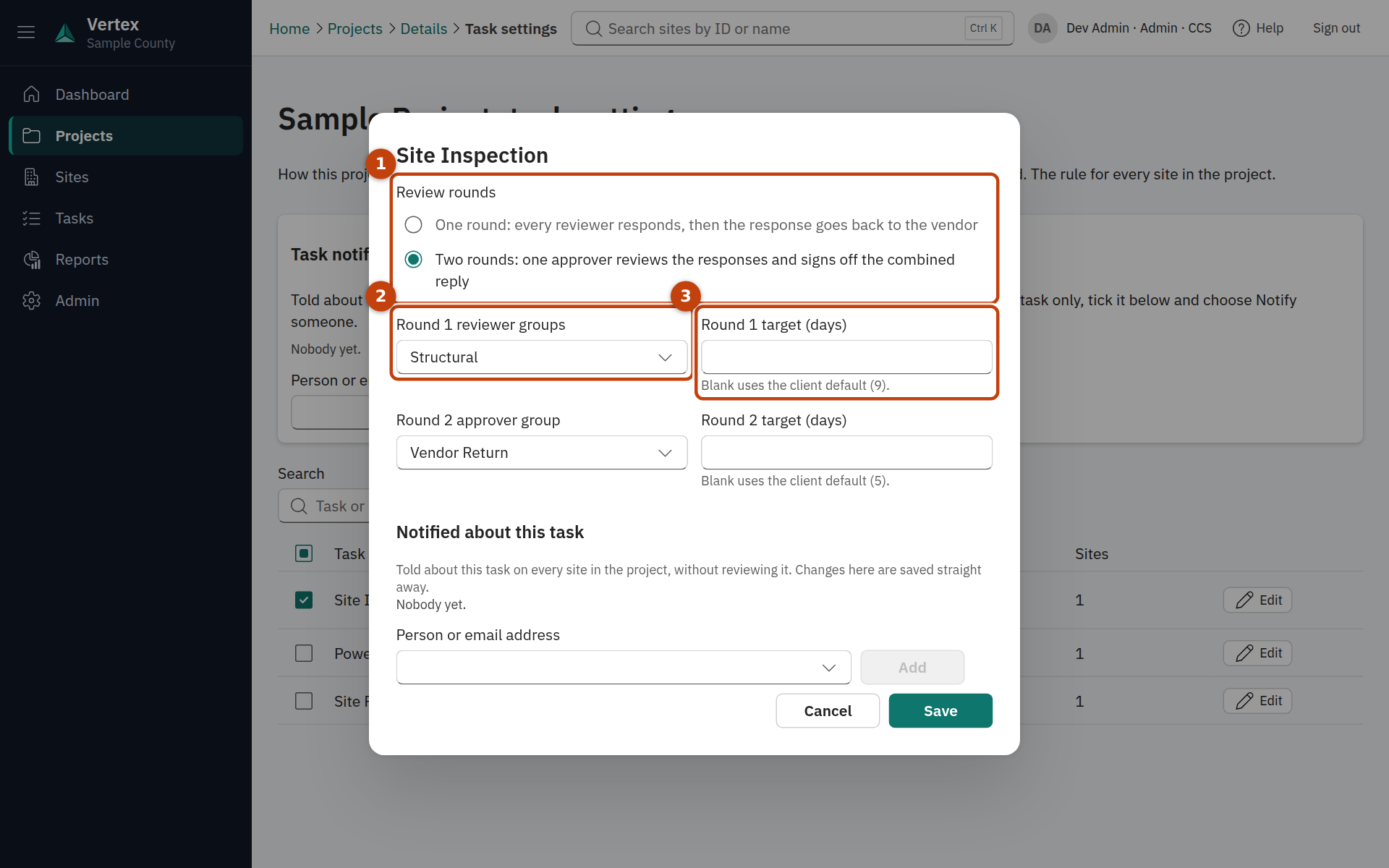
- 1. One or two review rounds for the selected tasks.
- 2. The reviewer groups for round 1 (and the approver group for round 2).
- 3. Target days per round; blank uses the client default.
Document standards
A standard is the approved example of what a task needs in a project (a model drawing set, a report template), for one vendor or for all of them. Tasks › Standards lists them; New standard starts one, and Propose the first version sends its files for review. Versions are reviewed like submissions; the latest approved one is in force, and a vendor's own standard comes before the all-vendor one.
In Project › Task settings, tick Submissions are checked against an approved document standard for the tasks that need one. Standard reviewers choose who reviews proposals; left empty, it's the round 1 groups plus the Project Managers reviewer group. Until a standard is approved, vendors are warned when they submit; switch on Refuse submissions until the standard is approved on the project page to stop them instead (Admins can still submit).
Each submission records the version in force when it was sent. When a newer version is approved, Admins get an email listing submissions checked against an older one, and the standard's page shows the same list.
Reports and exports
Reports: Trends and quality (first-pass rate, attempts, resubmissions over time) and Team review performance (time to respond by group and person). Each chart has Show table for its numbers. Export to Excel on Sites, Tasks and Submissions downloads those lists; Admins can schedule the export to SharePoint under Admin › Settings.
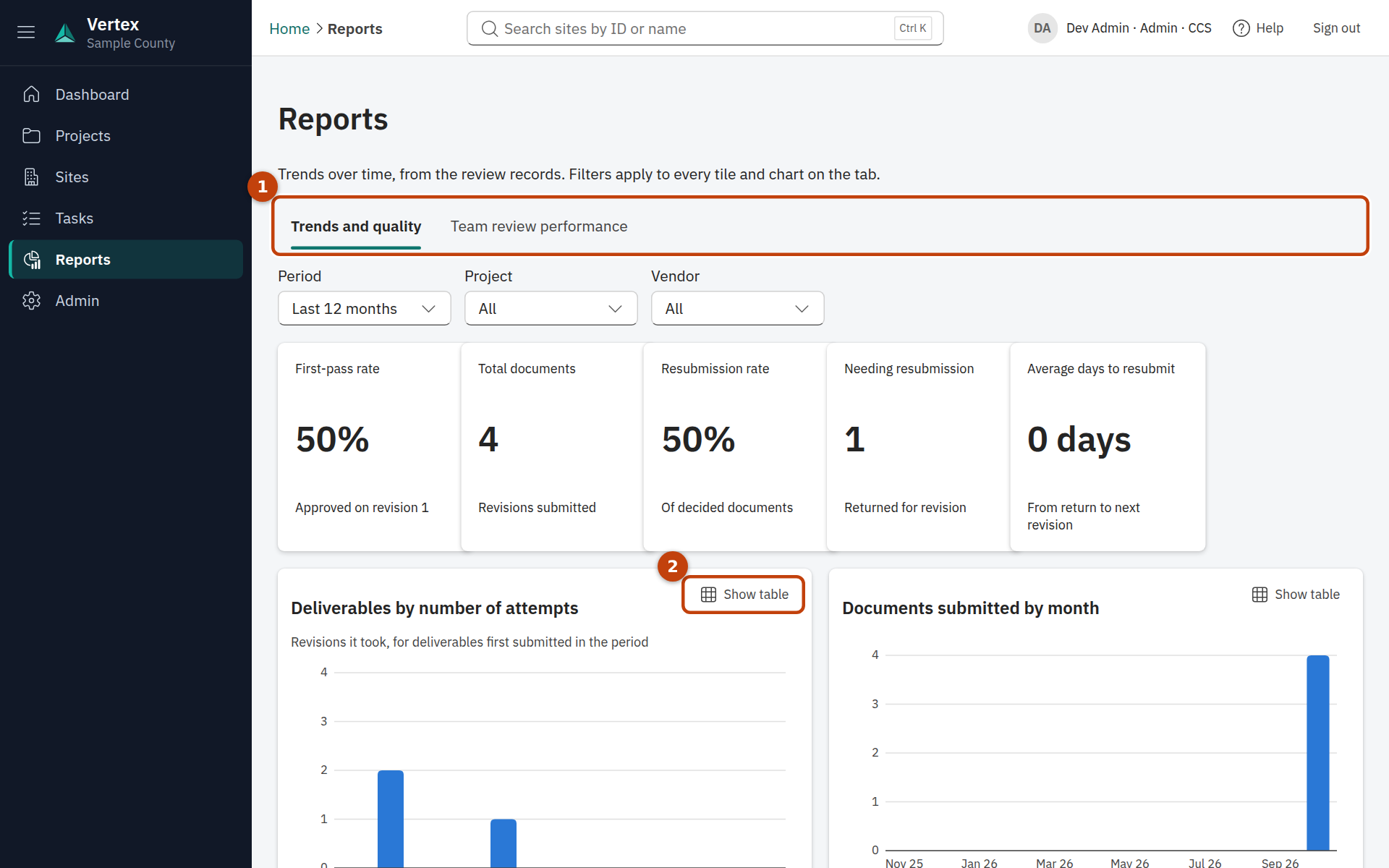
- 1. The two reports.
- 2. A chart's numbers as a table.
Admin
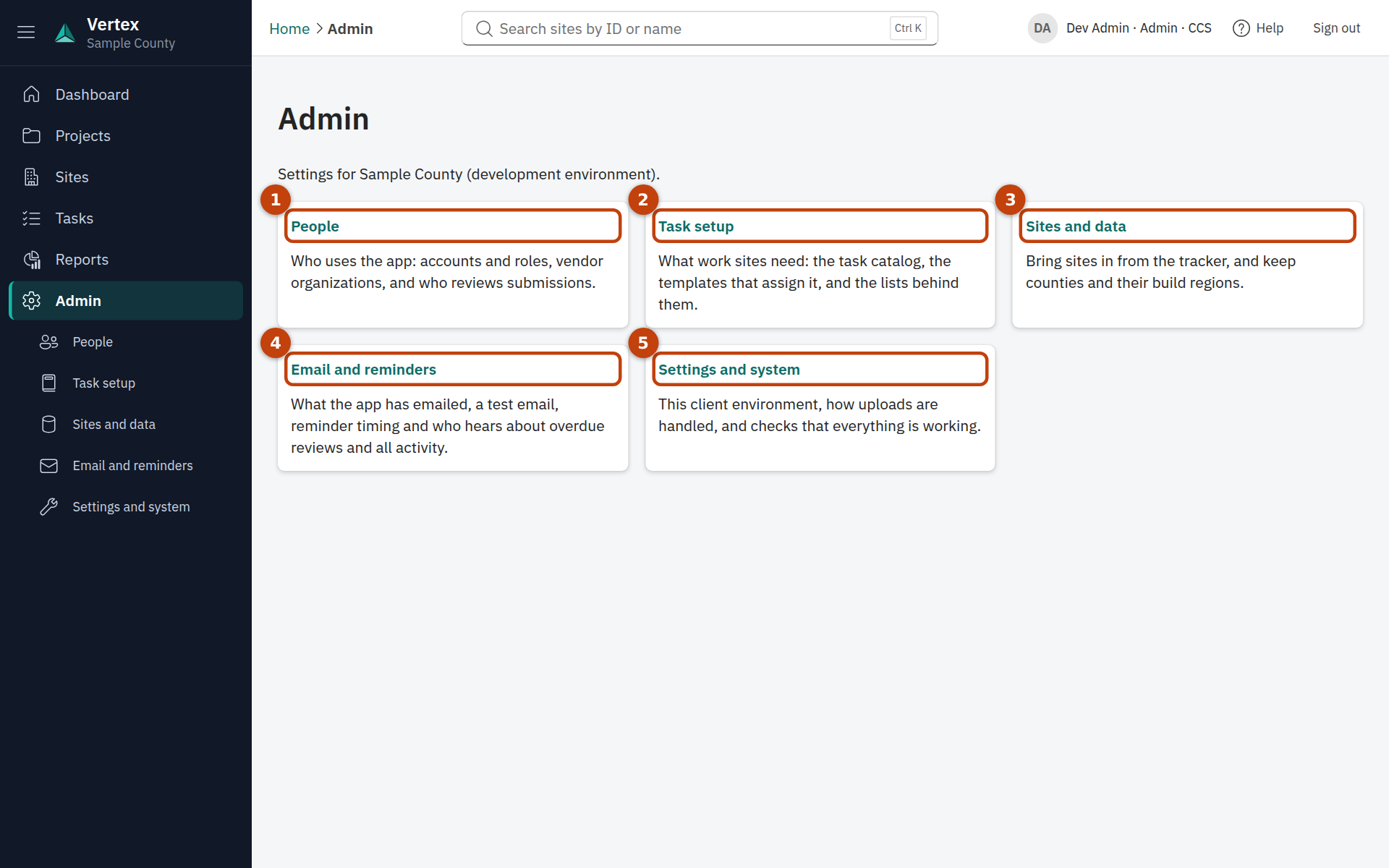
- 1. People: Users (invite, roles, deactivate), Vendors, Reviewer groups.
- 2. Task setup: the task catalog (import, export, calculated tasks), templates, lists.
- 3. Sites and data: import sites, import the previous tracker's submissions, counties.
- 4. Email and reminders: the outbox, Sending (pause email, or send only to some addresses), reminder and escalation settings, notification lists.
- 5. AI assistance: AI review assistance on or off, US-only processing, the model for each job, prices, the monthly cap and this month's spend.
- 6. Settings and system: client name and logo, approved-file naming, scheduled export, virus scanning, System check, Markup lab.
Inviting someone (Admin › Users › Invite someone) emails them how to sign in; Resend invitation sends it again. The role Notification only adds someone who only gets emails: no invitation, no sign-in. Run System check after any change to storage, email, SharePoint or sign-in.
Test environments: under Admin › Email › Sending, Pause email stops all email, and Only send to limits it to addresses or whole domains (@connectwithccs.com). Held emails are listed as Not sent with the reason and are never sent later, so turning email back on doesn't release a backlog.
- Vendors' notification lists. A Vendor Admin picks people from their own organization to be emailed about their work on a task or across a project. You get an email for each addition, a task's page shows each vendor's list, and everyone on them is in Admin › Users. Deactivating someone there stops their emails, and a Vendor Admin can't undo it.
- Importing past submissions (Admin › Sites and data › Import submissions): Add the sites that aren't in the app adds the missing sites to a project you choose, with the tasks their rows name. Sites match on UID only, so an existing site keeps its name. Check the file shows what would happen before anything is written.
Emails
| Who gets it | |
|---|---|
| Please review: … | Round 1 reviewers when a revision is submitted, including the site's project owners when the project includes them. |
| Ready to return: … | The round 2 group when round 1 is complete. |
| Reminder / Overdue: please review … | Whoever a review waits on, from two days before the target; overdue ones also go to the escalation contacts. |
| Submitted / Approved / Needs revision: … | The task's notification lists (project, catalog task, the one under Admin › Email, and the vendor's own lists for its work), and the site's project owners when the project sends them notifications. |
| Approved copy not yet in SharePoint; Scheduled export | Admins, when something needs a hand. |
| (Vendor) added … to its notifications | Admins, whenever a Vendor Admin adds someone to a list. |
Short on purpose. Anything missing? Tell the administrator and it will be added.
← All help