Help › Vendor guide
Vendor guide
Everything a vendor does in Vertex: sign in, submit documents for your tasks, see where each submission stands, respond when the reviewers ask for changes, download the approved files and export your own report.
What Vertex does for you
The client's project team uses Vertex to follow every deliverable at every site. Each site has tasks (a site inspection, a power assessment, structural drawings, and so on), and tasks that need proof are completed by submitting documents. Your organization is the responsible vendor for some of those tasks, and you only ever see your own organization's sites, tasks and submissions.
What happens to a document you submit:
- You submit one or more files for one task. The task goes Under review.
- The reviewers read it (as one combined PDF), mark it up and decide.
- The task comes back Approved, or Needs revision with the reviewers' notes and a redlined copy. You submit a revision, and the cycle repeats until it is approved.
You are told by email at each step, and the Help button at the top right of every page opens this guide.
Sign in
The client's administrator, or your own Vendor Admin, added your work email address to Vertex, and you got an email with the subject Your access to Vertex · (the client's name) that says who added you and where to go. Sign in with that same address through Microsoft (a work or school Office 365 or Microsoft 365 account) or Google (Gmail or Google Workspace). There is no separate Vertex password to remember and nothing to set up: once your address is added, you can sign in.
- Choose Open Vertex in that email, or open the address (for the test environment: test.ccs.thevertex.app).
- Choose Sign in with Microsoft or Sign in with Google, whichever your email account belongs to.
- Sign in to that account as usual, including any two-step verification it asks for. The first time, approve Vertex's request to see your name and email address.
- You land on your dashboard.
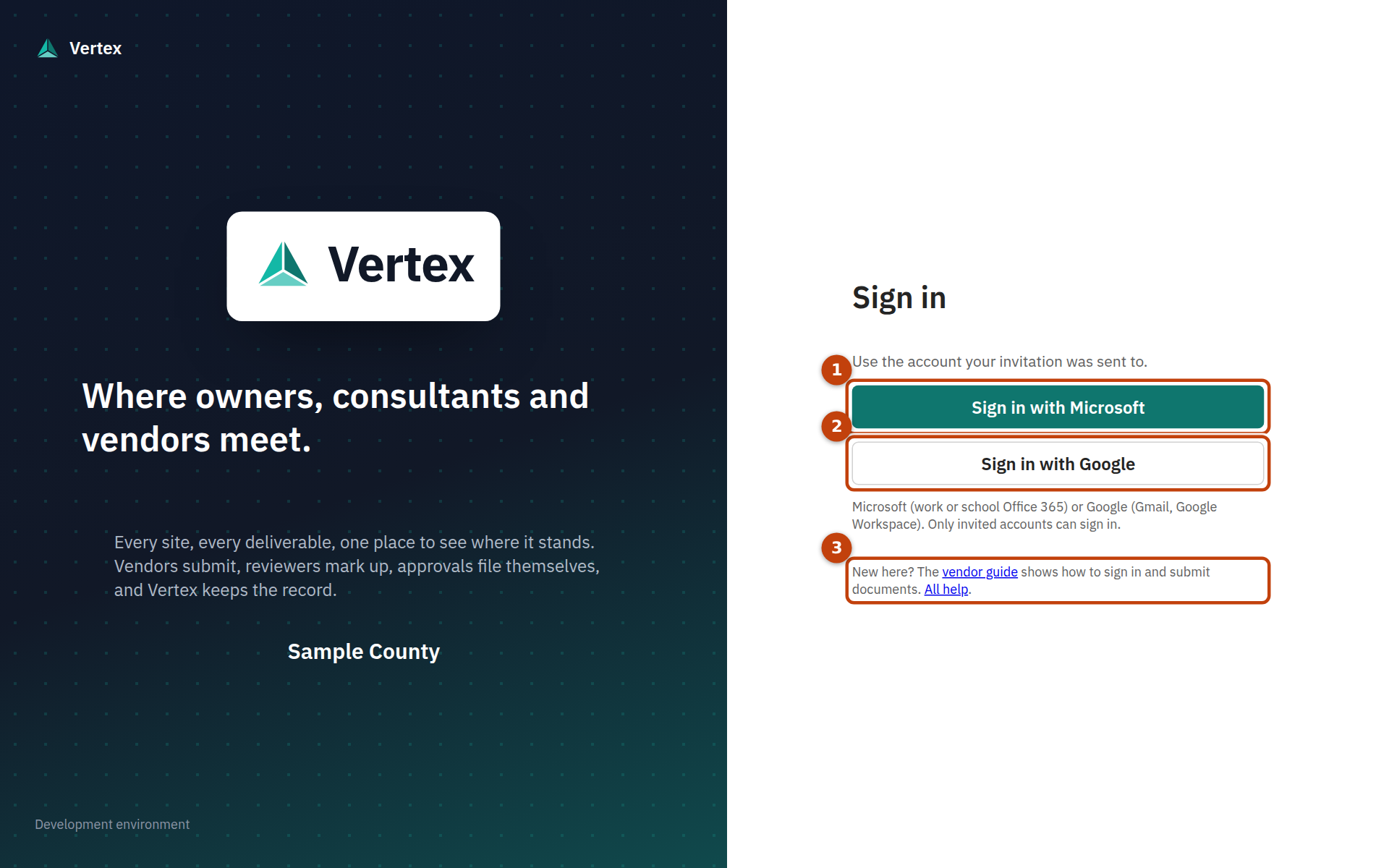
- 1. Sign in with Microsoft: for work or school Office 365 and Microsoft 365 accounts. A personal Outlook.com address signs in with Google instead, if it is a Google account, or ask to be invited at a work address.
- 2. Sign in with Google: for Gmail and Google Workspace accounts.
- 3. Help links: this guide, readable before you sign in.
Careful:If you see "This account hasn't been invited, or has been deactivated", you signed in with a different address than the one that was added, for example a personal account the browser remembered. Sign out of that account, or use a private browser window, and try again with your work address. If it still fails, ask whoever gave you access to check the address they entered.
To sign out, choose Sign out at the top right. You stay signed in for a while on the same browser, so sign out on a shared computer.
Your dashboard
The dashboard is your to-do list. It shows what is waiting on you first, then what is with the reviewers, then where everything else stands.
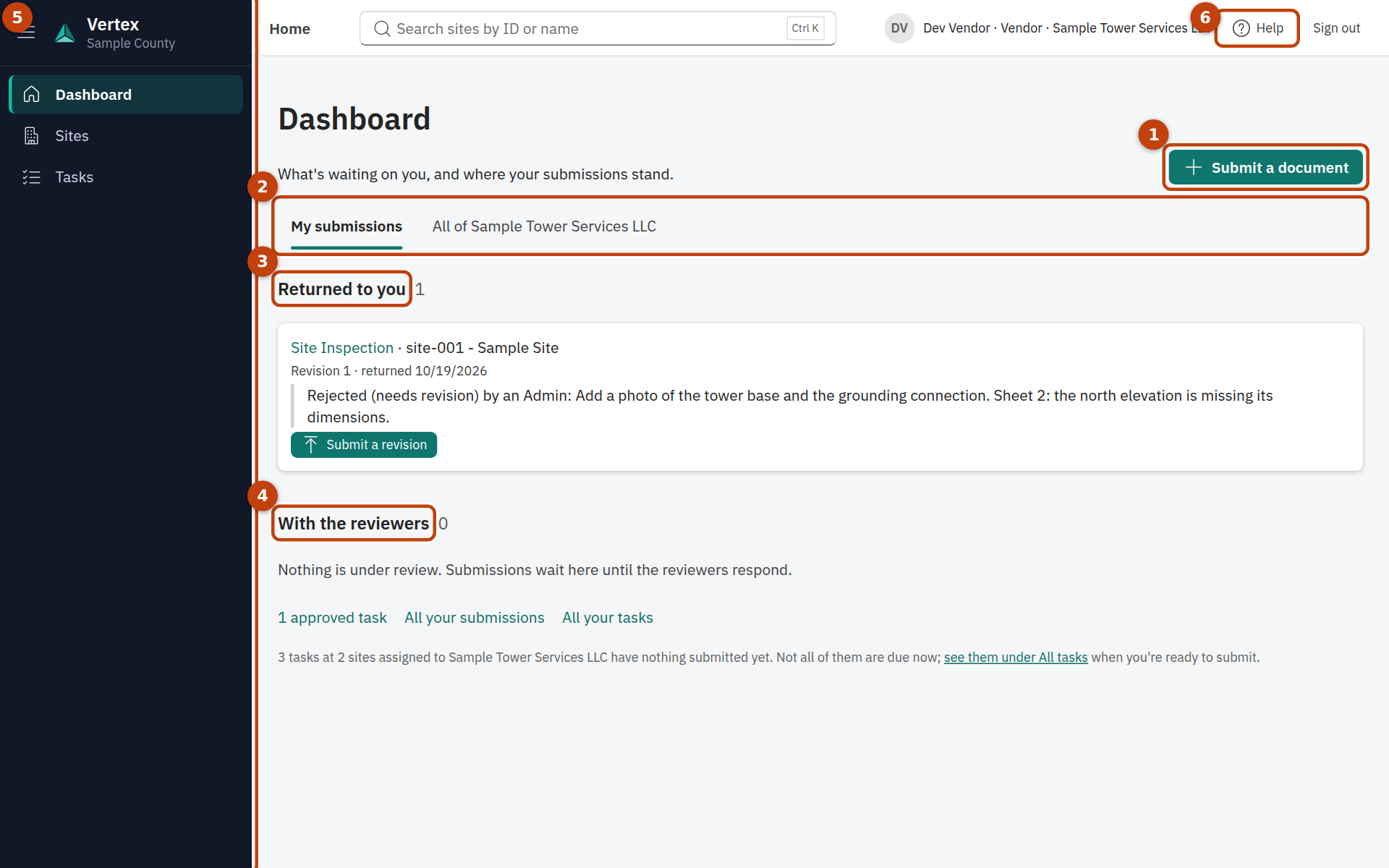
- 1. Submit a document starts a new submission for any of your tasks.
- 2. My submissions shows your own; All of … shows your whole organization's (Vendor Admins start on this one).
- 3. Returned to you: tasks the reviewers sent back, with their note and a Submit a revision button. Deal with these first.
- 4. With the reviewers: what you submitted and are waiting on, with the date.
- 5. The menu: Dashboard, Sites and Tasks are the pages you have.
- 6. Help opens this guide in a new tab; Sign out ends your session.
Under those sections, a line says how many of your tasks have nothing submitted yet, with a link to the full list.
Submit a document
A submission is one or more files for one task at one site. Start it from wherever you are:
- Submit a document on the dashboard, then pick the project, site and task on the form; or
- Submit documents on a task, from Tasks › All tasks or the task's own page. The task is already filled in.
- Pick the Project, then the Site (type part of the site ID or name to search), then the Task. The task's category fills in by itself. Only tasks your organization is responsible for are offered.
- Read Evidence to be provided for this task: what the reviewers expect to find in your files.
- Add your files under Attachments: drag them in or choose them. Each file is checked and prepared (a progress line shows under it), which takes a few seconds per file.
- If the task has a checklist (shown under What to include), choose what each file is from the list under it. Each item gets a tick once a file is marked as it. If a required item is missing, you are asked to confirm before submitting, and the reviewers see what was left out.
- Add Submitter comments if there is anything the reviewers should know, for example what changed since the last revision.
- Choose Submit. A confirmation says which revision number this is. OK takes you to your submissions; Submit another document keeps you on the form.
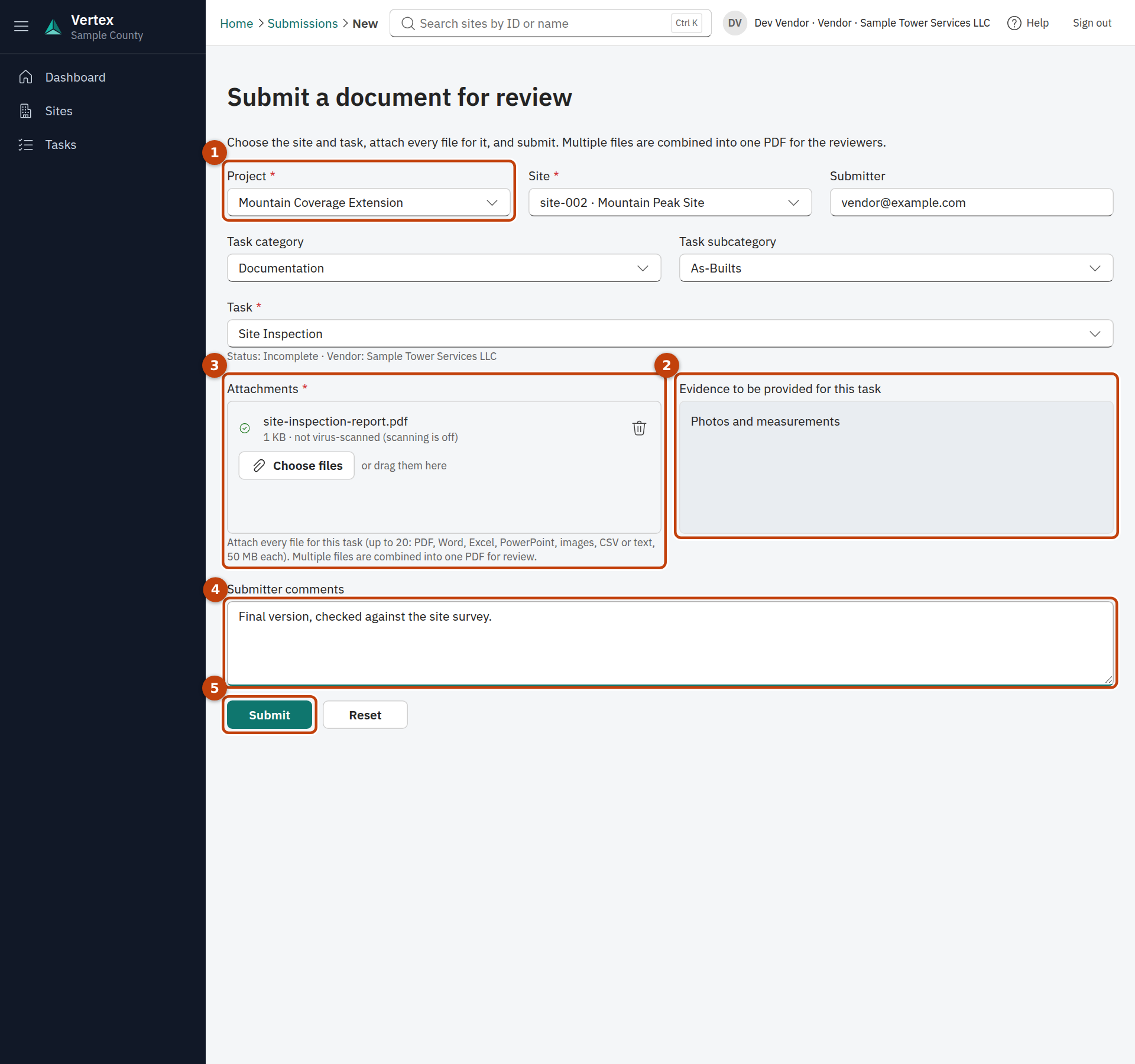
- 1. Project, Site and Task: type to search. Pick the site before the task.
- 2. Evidence to be provided: what the reviewers look for in this task's documents.
- 3. Attachments: drop files here or choose them. Each one is checked before Submit is enabled.
- 4. Submitter comments: anything the reviewers should know.
- 5. Submit sends it. It stays disabled until at least one file is ready.
What you can attach
- PDF, Word, Excel, PowerPoint, images (JPG, PNG and others), CSV and text files.
- Up to 50 MB per file, and up to 20 files in one submission.
- The file's contents must match its name: a photo renamed to .pdf is refused.
- Several files are combined into one PDF for the reviewers, in the order you attached them. Put the main document first.
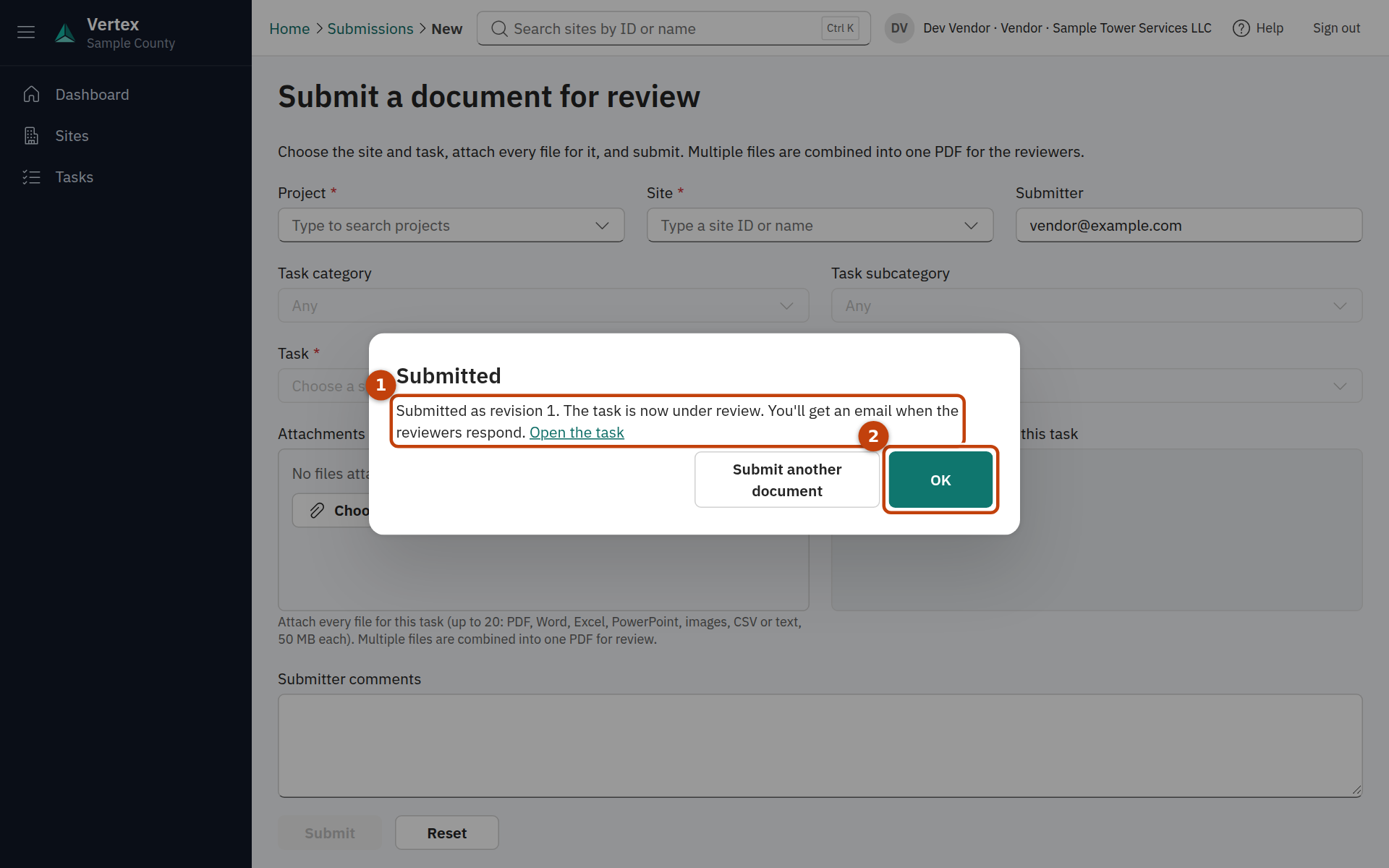
- 1. The revision number this submission became (revision 1 for a first submission).
- 2. OK goes to your submissions record; Submit another document clears the form for the next one.
Tip:Submitting to a task that is already under review replaces the submission under review; submitting to an approved task reopens it. The form warns you and asks you to confirm in both cases, so a second set of files for the same task is never added by accident. If you have more files for a task that is under review, cancel the open submission and submit everything together, or wait for the decision.
Check where a submission stands
Tasks in the menu opens on Submissions: the record of everything your organization has submitted, one row per revision, newest first, coloured by status.
| Status | What it means | What to do |
|---|---|---|
| Under review | The reviewers have it. | Nothing. You'll get an email when they decide. |
| Needs revision | Sent back with notes and, usually, a redlined PDF. | Read the response, fix the documents, Submit a revision. |
| Approved | Accepted. The task is complete. | Nothing. The approved copies are on the task's page. |
| Canceled | Withdrawn by you, a Vendor Admin or an Admin before a decision. | Submit again when ready. |
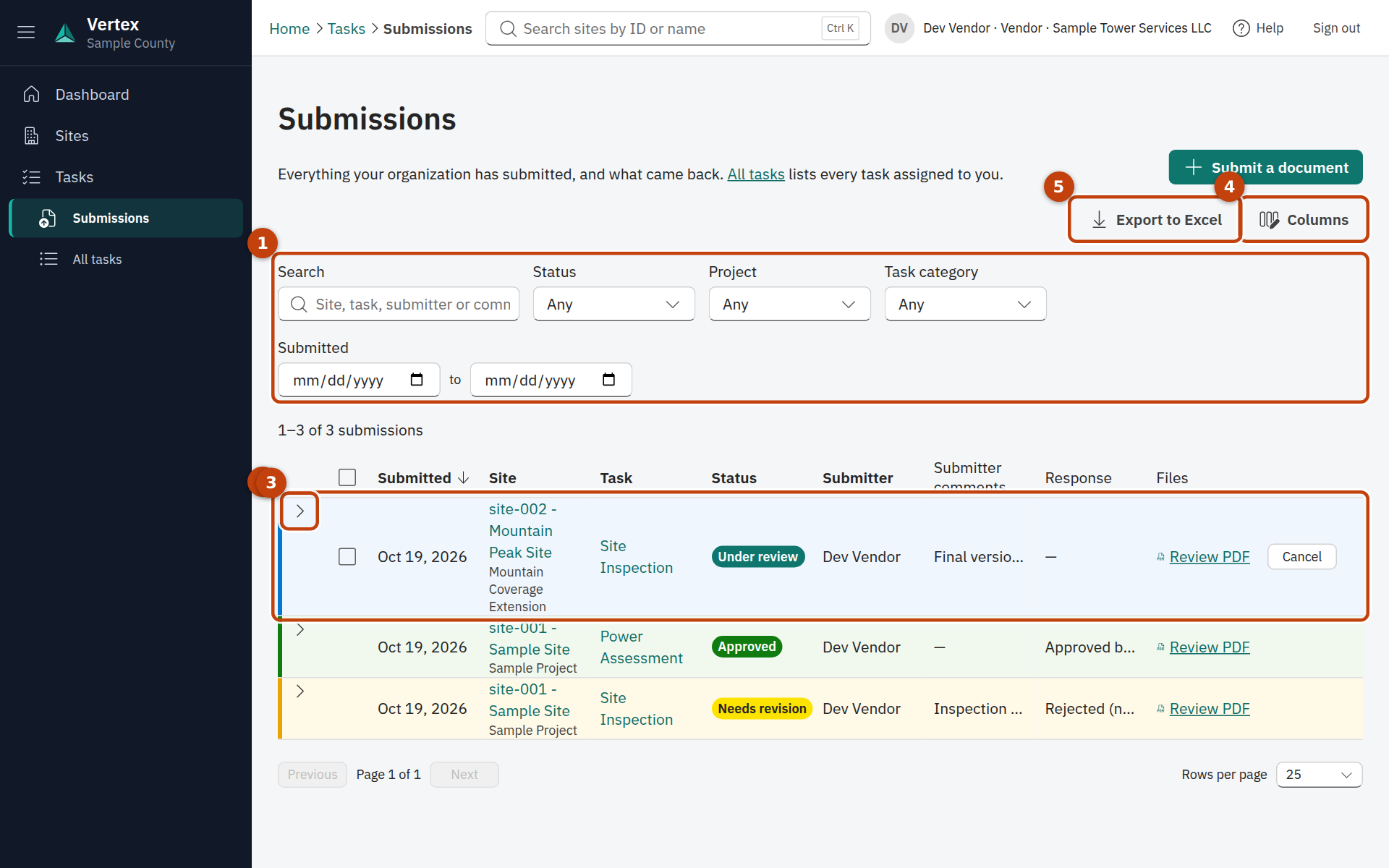
- 1. Filters: search, status, project, task category and a date range. The count on the right says how many rows match.
- 2. Each row is one revision: when it was submitted, the site, the task, its status, who submitted it, the comments, the response and the files.
- 3. The arrow on a row opens the response sent to you right under it.
- 4. Columns lets you show, hide and reorder columns; the choice is remembered in your browser.
- 5. Export to Excel downloads the list (see Export your submissions report).
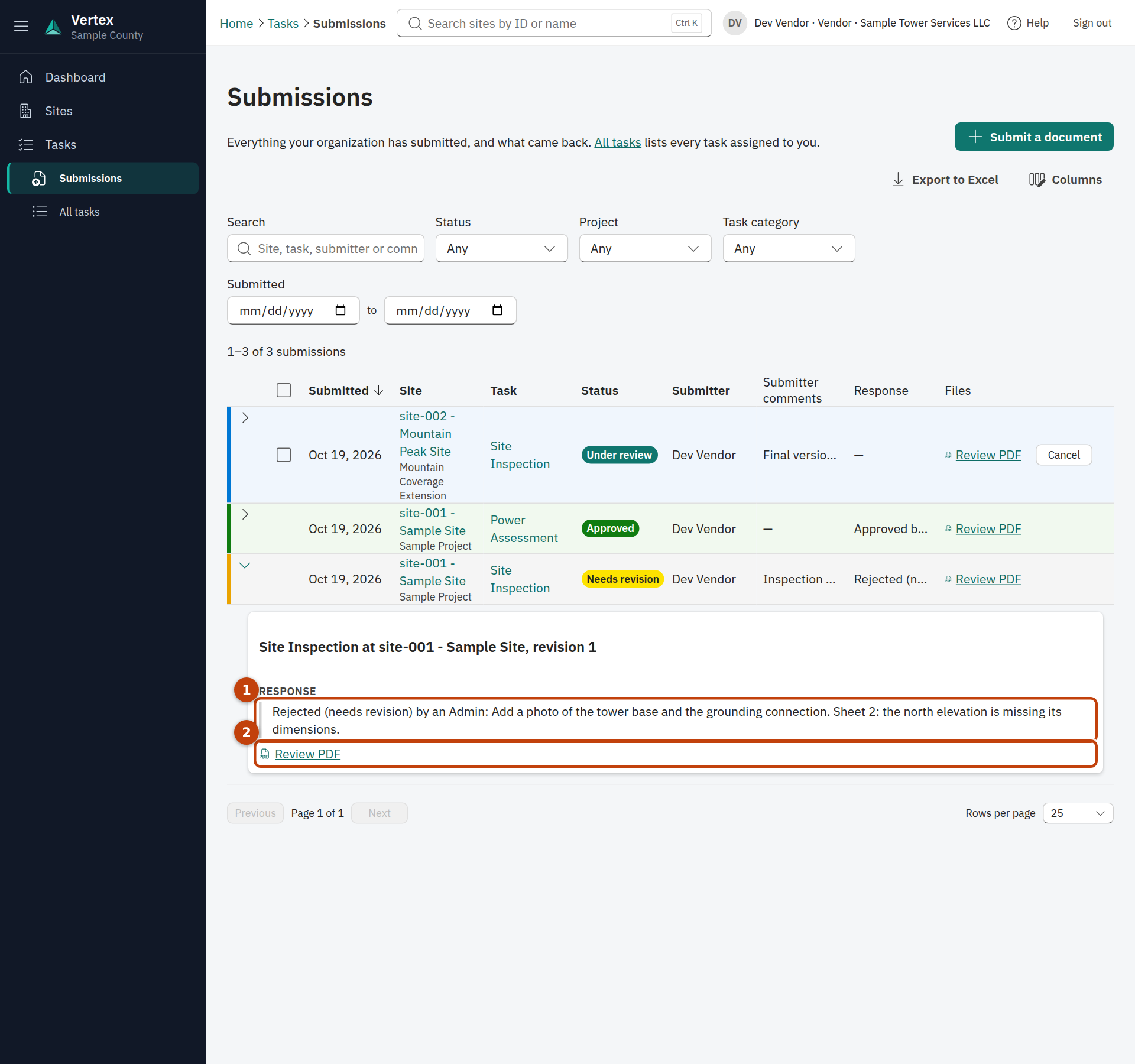
- 1. The response sent to you: the decision and the reviewers' notes.
- 2. The revision's review copy, and the redlined copy when there is one.
Click the task's name in a row to open the task page. Your latest revision's PDF fills the page: what you submitted while it is with the reviewers, and the reviewed copy with their markup once the review is done. A label above it says which one you are looking at. You can zoom and page through it but not change it; Open it in a new tab downloads or prints it. Beside it are the task's details (including its category), every revision ever submitted with its outcome, notes and files, and the Submit button when the task can take one.
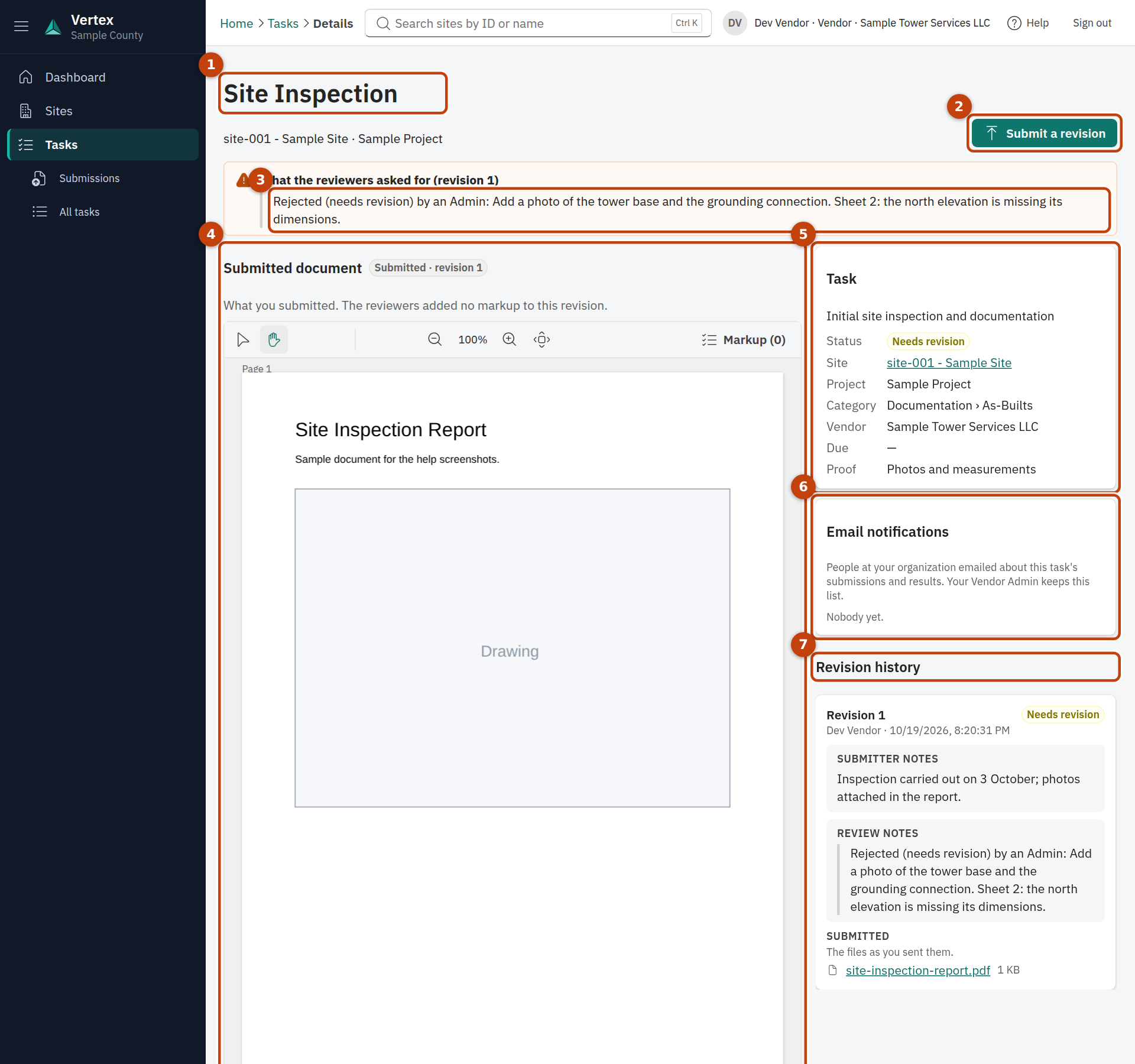
- 1. The task and where it is.
- 2. Submit a revision (or Submit documents) when the task can take a submission.
- 3. What to fix: the latest response, when the task has been returned.
- 4. The latest revision's PDF, view only. The label says whether it is the submitted or the reviewed copy.
- 5. The task: site, project, category, vendor, status and what evidence it asks for.
- 6. Email notifications: colleagues told about this task (your Vendor Admin keeps the list).
- 7. Revision history: each revision with its status, your notes, the review notes and the files. Links in notes open in a new tab.
Document standards
Some tasks have a standard: the approved example of what the project expects (a model drawing set, a report template). The submission form links the one in force under What to include. If a task needs a standard and none is approved yet, the form says so, and some projects won't take submissions until one is.
Tasks › Standards lists your organization's standards and the ones for every vendor. New standard starts one for your organization; Propose the first version sends its files for review, like a submission. The reviewers' response appears on the standard's page; once a version is approved, your submissions for that task are checked against it.
Respond to a revision request
When the reviewers return a submission, the task goes Needs revision and you get an email with their notes. In Vertex:
- Open the dashboard. The task is listed under Returned to you with the reviewers' note.
- Open the task (click its name) to read the full response and download the redlined PDF: the review copy with the reviewers' markup, so you can see exactly where each comment belongs.
- Fix your documents.
- Choose Submit a revision. The form opens on that task and shows What the reviewers asked for above the attachments, so you can check each point off as you go. Attach the complete set of files again, not just the changed pages: each revision stands on its own.
- Say what changed in Submitter comments, then Submit. This becomes the next revision number, and the task goes back Under review.
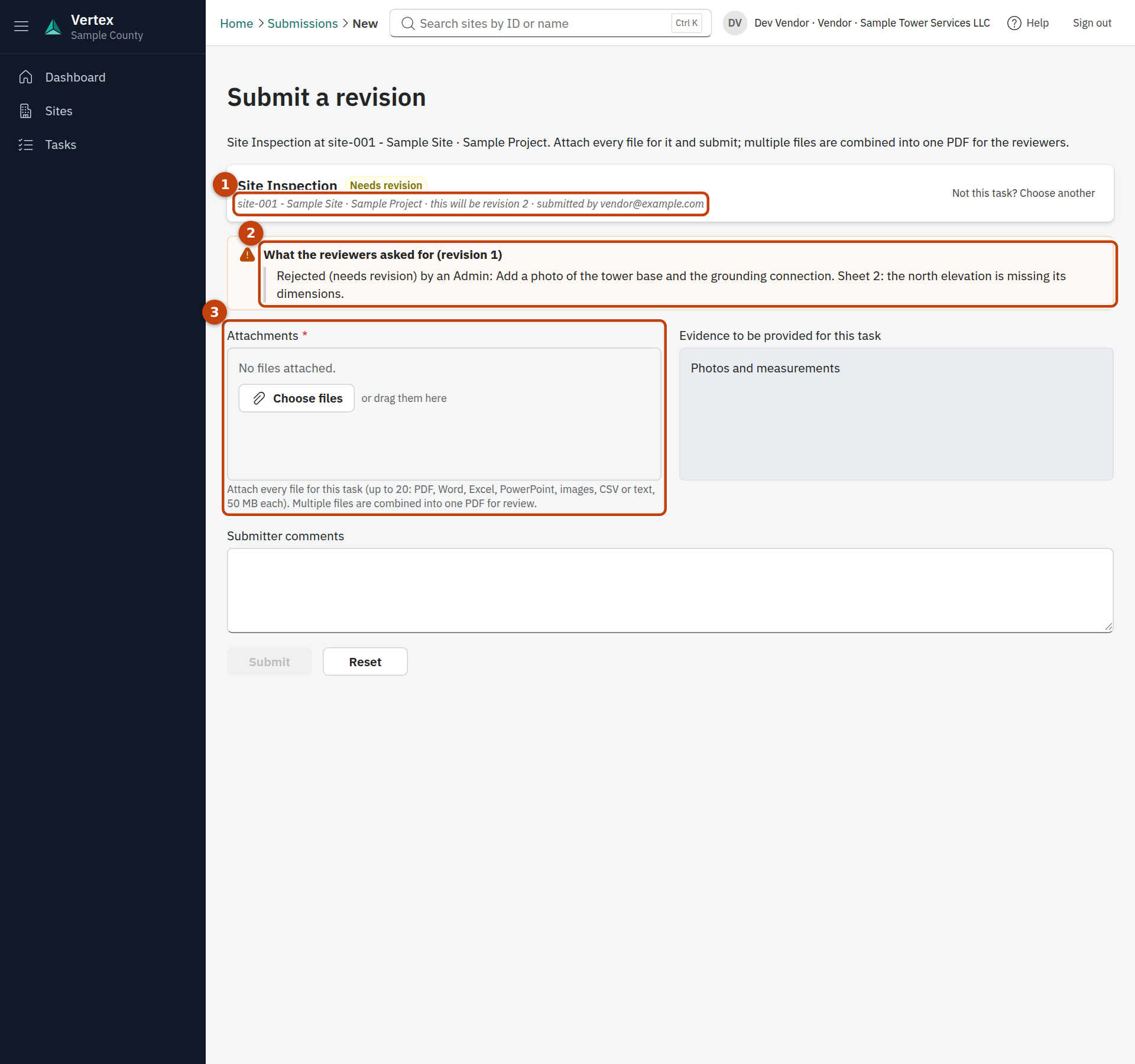
- 1. The task you're revising, with the revision number this submission will become.
- 2. What the reviewers asked for: the response to the previous revision, so you can check your changes against it.
- 3. Attach the complete set of files for the task.
Open and download the files
On a task's page, each revision lists its files in up to three groups:
- Submitted: the files exactly as you sent them.
- Review: the review copy, which is what the reviewers were given: your files as one PDF (shown when you sent several files, or a file that had to be converted; a single PDF is its own review copy); and, once the revision has been decided, the redlined PDF with their markup.
- Approved: for an approved revision, the approved copies, named the way the client files them.
Click a file's name to download it. Files are kept with the revision; an earlier revision's files stay available after you submit a new one.
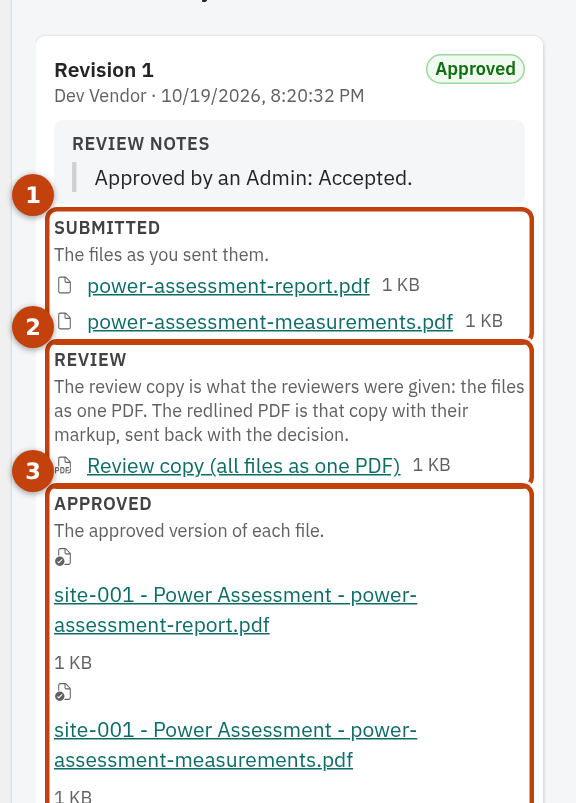
- 1. Submitted: your files as sent.
- 2. Review: the combined review copy, and the redlined copy once it has been reviewed.
- 3. Approved: the approved copies, on an approved revision.
Cancel a submission
You can withdraw a submission until the reviewers decide on it: if you attached the wrong file, or want to add more. The person who submitted it can cancel it; a Vendor Admin can cancel anyone's in the organization. Once a decision has come back, it can't be canceled; submit a revision instead.
- Find the submission: its row on Tasks › Submissions has a Cancel button while it is under review, and so does the open revision on the task's page.
- Choose Cancel, give a short reason, and confirm with Cancel submission.
- The task goes back to Incomplete (or Needs revision if an earlier revision was returned) and the reviewers are told it no longer needs their review. Submit again when ready.
To cancel several at once, tick their rows on Tasks › Submissions and choose Cancel above the table.
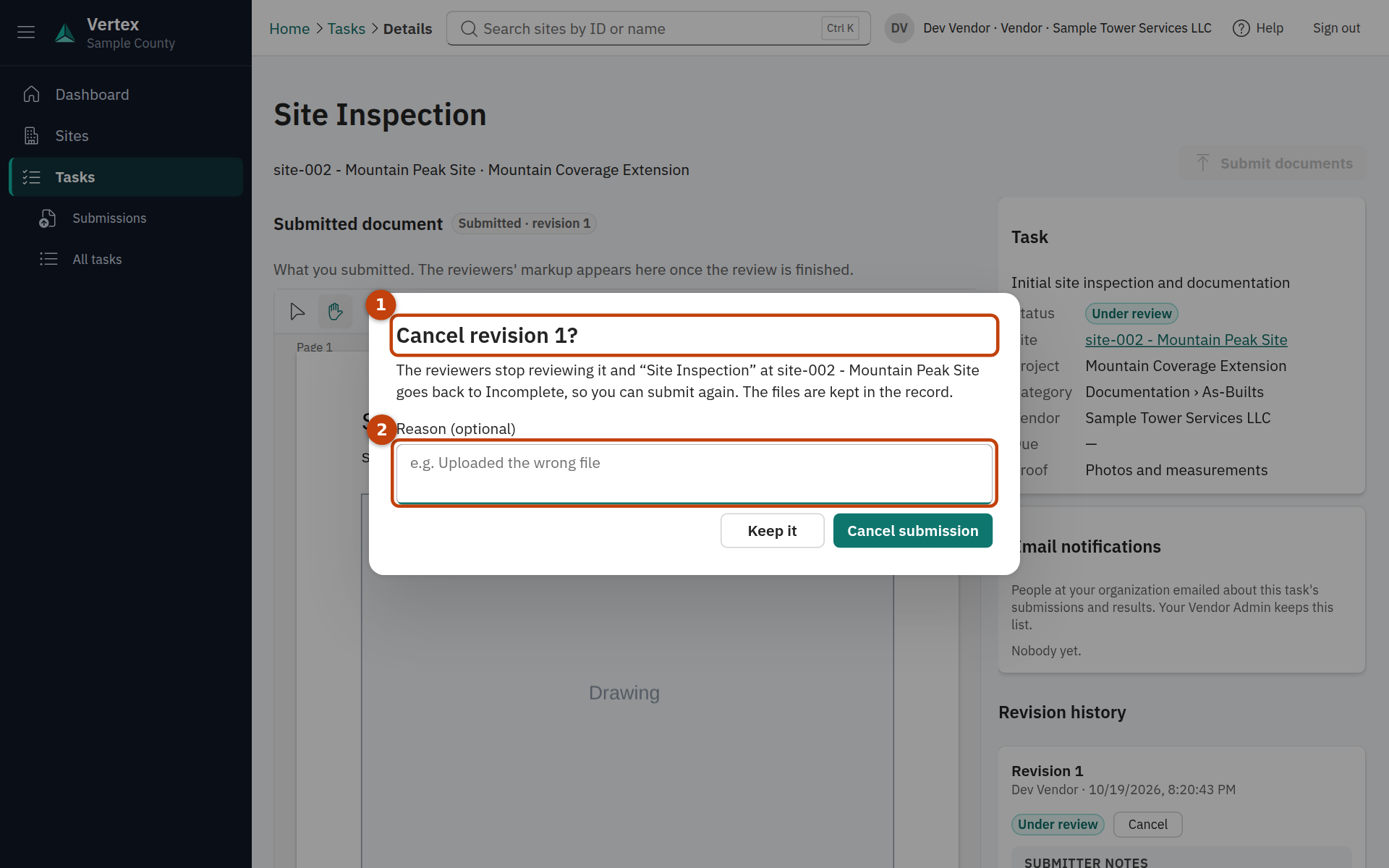
- 1. Cancel on the revision that is still under review.
- 2. The reason, kept with the revision for the record.
Export your submissions report
Export to Excel, at the top of Tasks › Submissions and Tasks › All tasks, downloads an Excel workbook with your organization's data, one sheet per list, with every column you can see in the app (whatever the page's current filters are, the export is the full list).
- Open Tasks and choose Export to Excel.
- Tick the sheets you want: Tasks (every task of yours, with site, project, status and dates) and Submissions (every revision, with its status, dates and the response).
- Choose Download. The browser saves the file; open it in Excel.
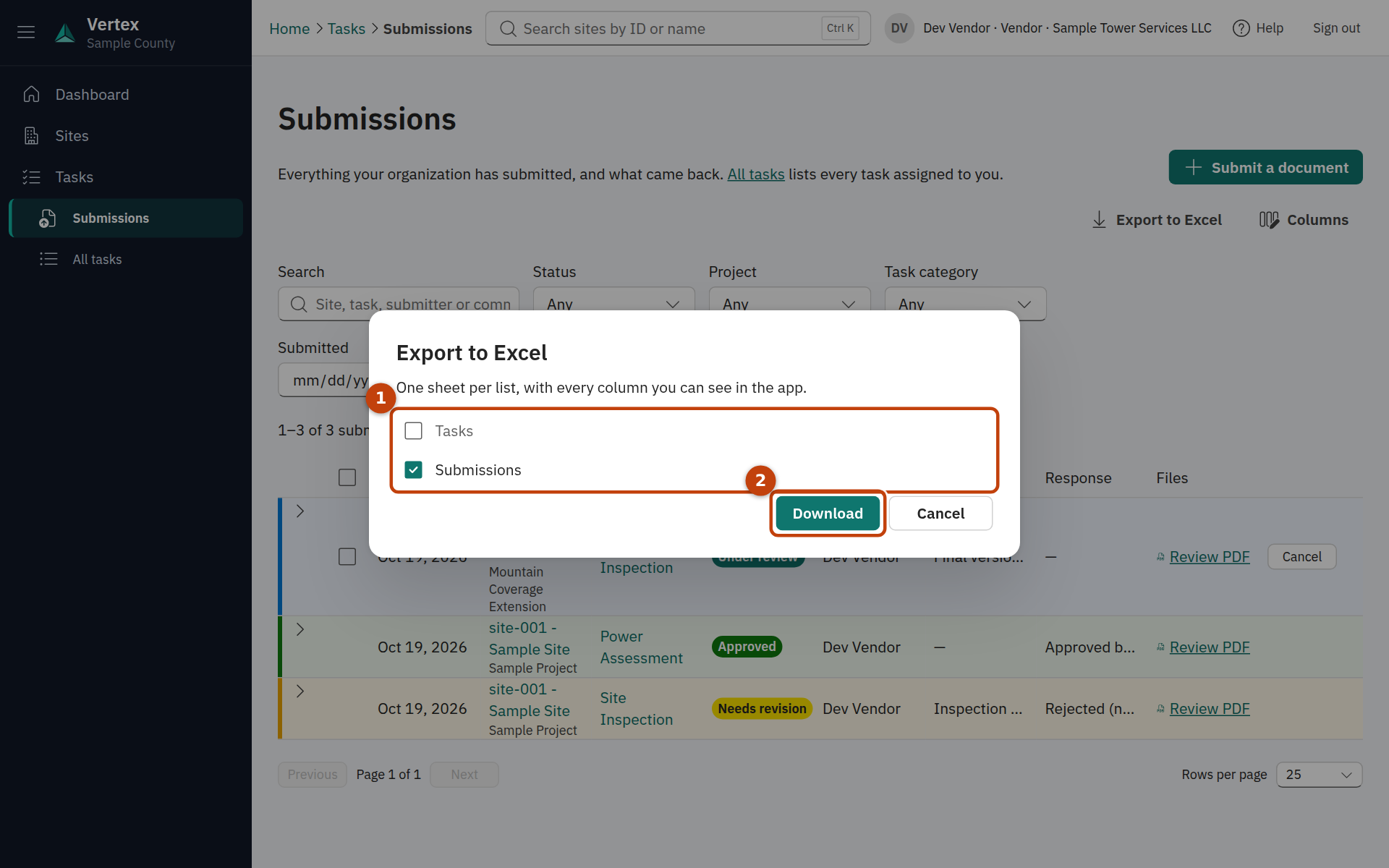
- 1. Tick the sheets to include. Vendors get Tasks and Submissions; the page you opened it from is ticked already.
- 2. Download saves the workbook.
Tip:The Submissions sheet has one row per revision, like the table. To report on tasks rather than attempts, use the Tasks sheet: one row per task with its current status and latest revision.
Find your tasks and sites
Tasks › All tasks is every task your organization is responsible for, at every site, with its status and a Submit button on the tasks that can take one. Filter by project, site or status (More filters adds category and tracking group), or search by name. Tasks with nothing submitted yet are Incomplete.
To jump straight to one, type a site's ID or name in the search box at the top of every page (Ctrl K opens it). Add part of a task's name to narrow it, such as A1234 survey. With nothing typed it lists what you opened recently.
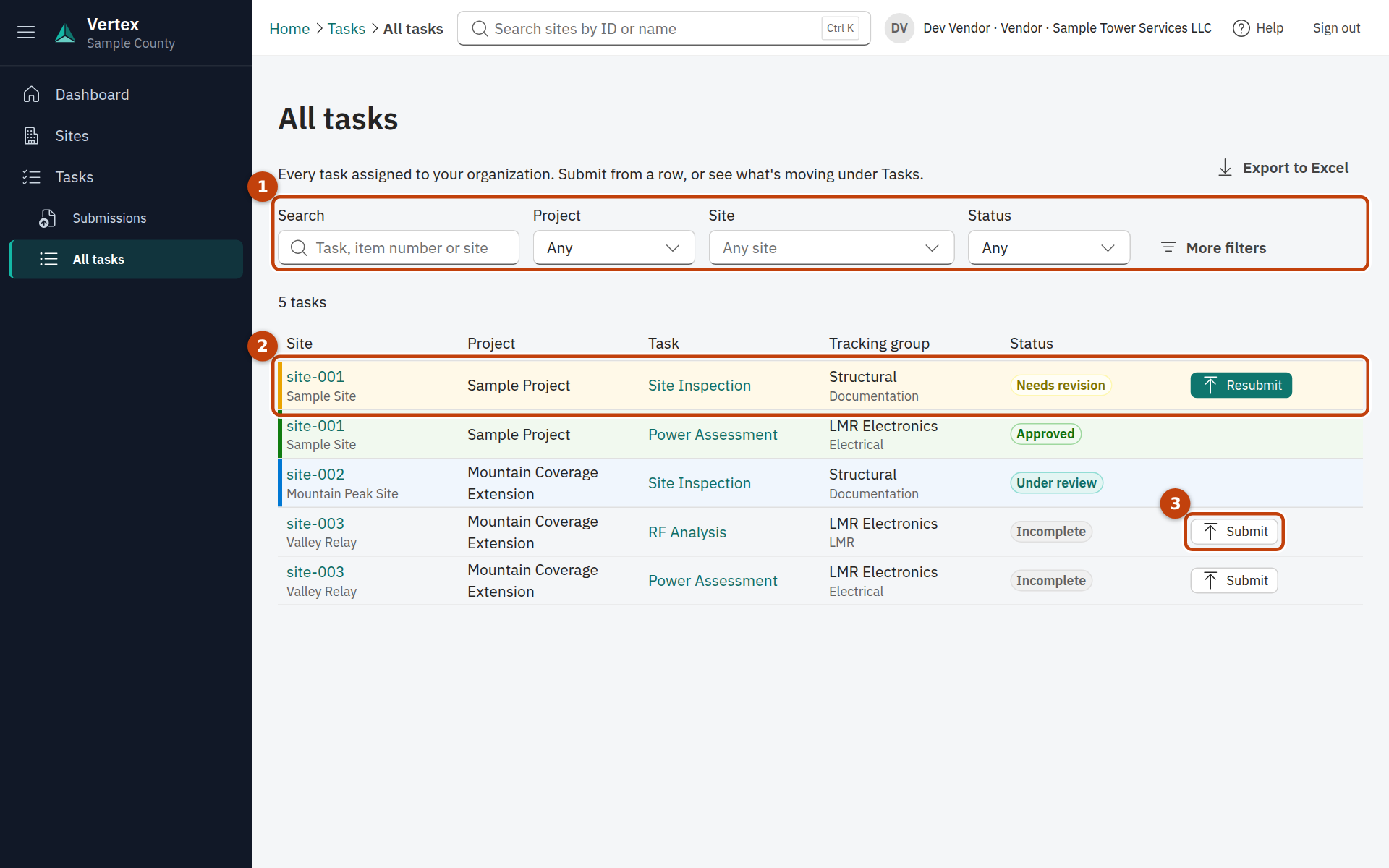
- 1. Filters and search narrow the list; the Status filter finds everything still Incomplete.
- 2. Each row: site, project, task, tracking group and status, coloured like the Submissions table.
- 3. Submit on a task that can take a submission; Resubmit on one that was returned. A task under review has no button.
Sites lists the sites you have tasks at. A site's page shows its details (ID, name, projects, county, location) and your tasks there, so you can work site by site.
Tip:A task that needs an earlier task approved first (for example final drawings that wait on preliminary drawings) can't take a submission until then; its Submit button says so.
The emails you'll receive
| When | |
|---|---|
| Your access to Vertex · … | When you are added: who added you, the address to sign in with and where to go. |
| Received: … | Right after you submit, confirming the task, site and revision number. |
| Needs revision: … | The reviewers returned it. The email carries their notes; the redlined PDF is on the task's page. |
| Approved: … | The reviewers approved it. |
| Reminder / Overdue: please submit a revision of … | A returned task has waited for its revision longer than the project allows. |
Emails come from Vertex's address and name the client they are about; add it to your safe senders. Every email links straight to the task in Vertex. If you submit on behalf of a colleague, they get the emails for that submission.
For Vendor Admins
A Vendor Admin is a vendor who also looks after their organization's people and work in Vertex.
- Your dashboard opens on All of …: the whole organization's returned and in-review submissions, not just your own.
- You can cancel any colleague's open submission.
- Admin › Users (the Admin item in your menu) lists your organization's people. Invite someone adds a colleague with the email address they'll sign in with and the role Vendor or Vendor Admin; Edit changes a role or deactivates someone who has left. Only your own organization is visible to you.
- Someone who only needs the emails, not access, is added with the role Notification only. They get no invitation and can't sign in.
- You choose who else is emailed about your work. Email notifications on a task's page covers that task; Email notifications by project, below your people on Admin › Users, covers everything your organization does in a project. Pick from your organization's people. They hear about your work only, and the client's administrator is told about each addition and can deactivate anyone.
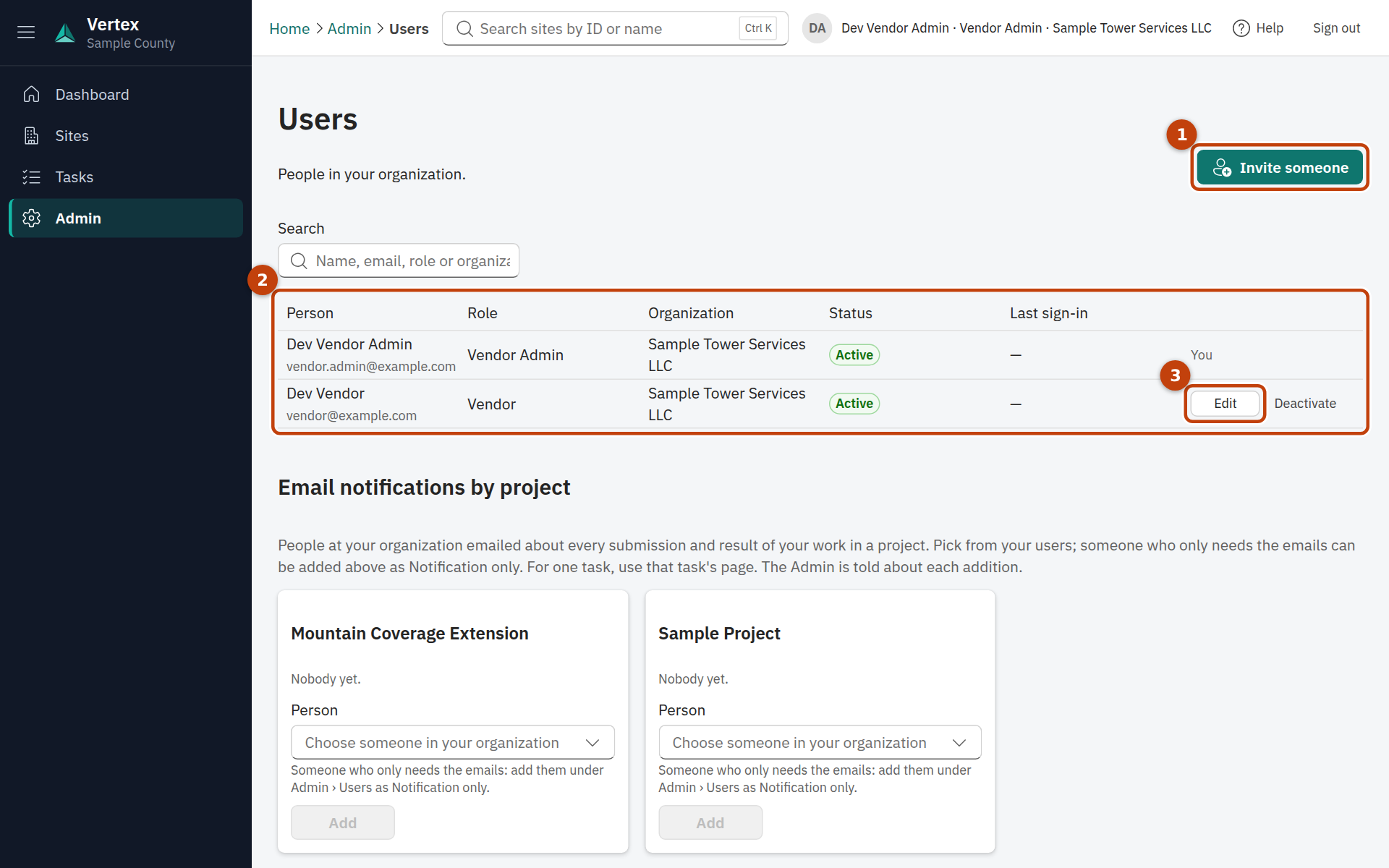
- 1. Invite someone adds a colleague.
- 2. Your organization's people, their roles and when they last signed in.
- 3. Edit changes someone's name or role; Deactivate removes their access.
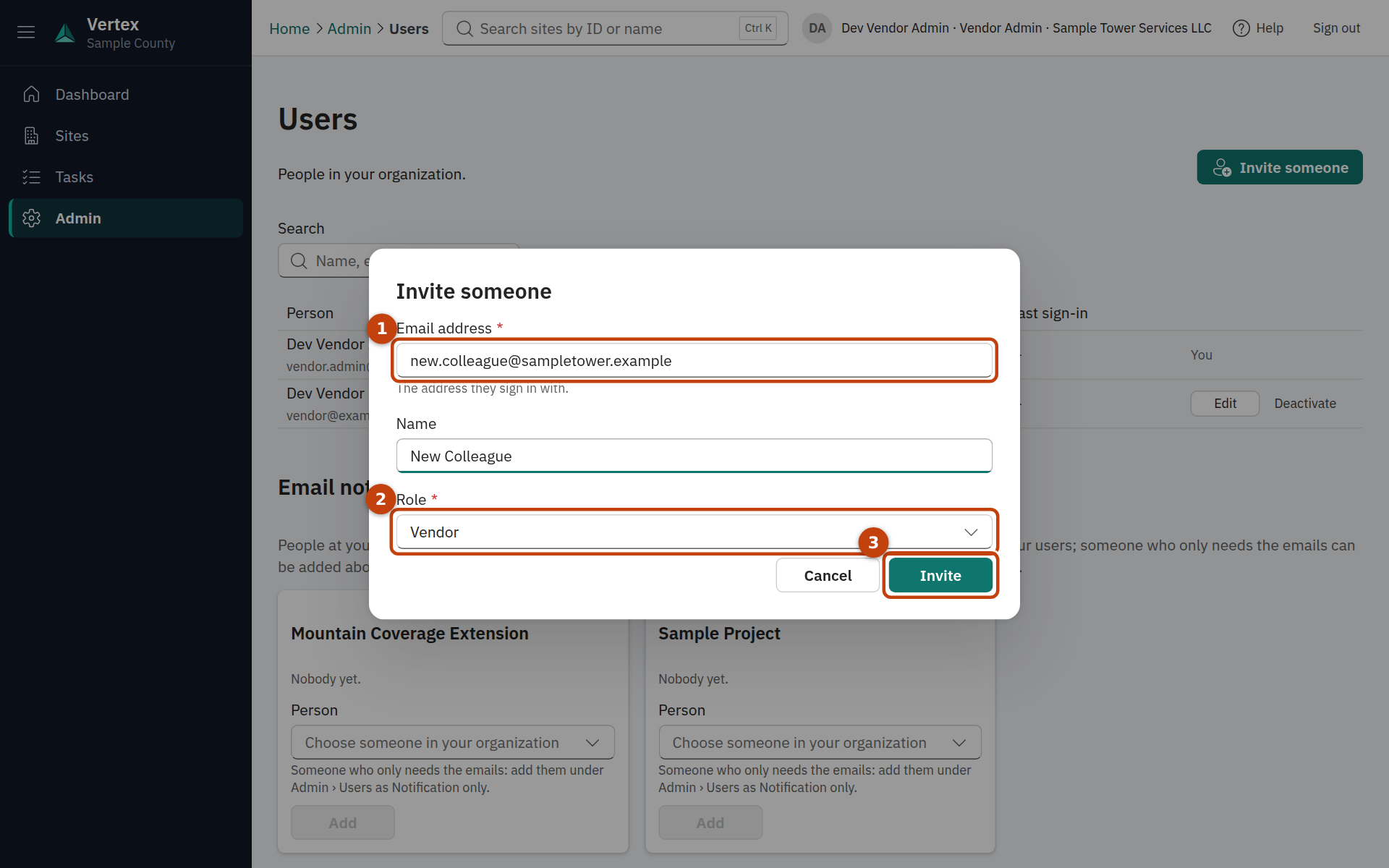
- 1. The email address they will sign in with (Microsoft or Google).
- 2. Their role: Vendor, Vendor Admin to let them manage people too, or Notification only for someone who just needs the emails.
- 3. Invite adds them and emails them how to sign in.
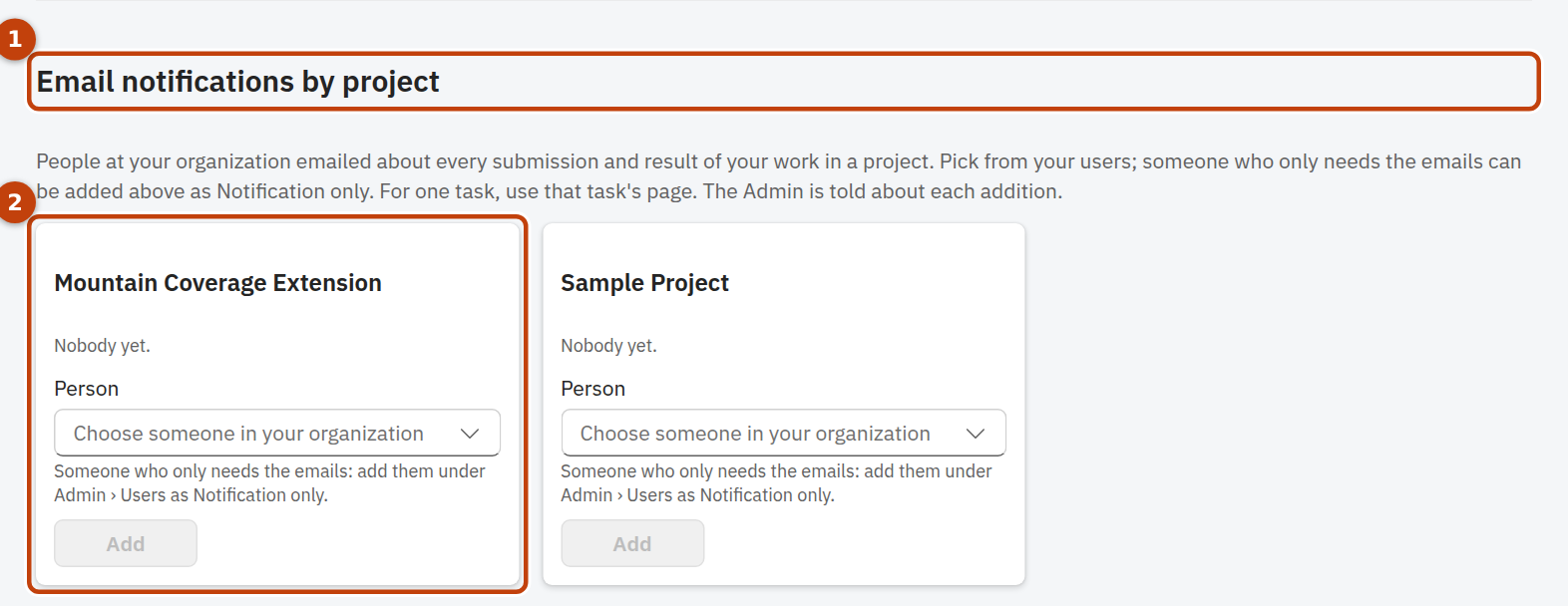
- 1. Everyone on these lists is emailed about your organization's work in that project.
- 2. Each project's list. Choose a person and Add; the X removes them.
An invited colleague gets an email with Vertex's address, who added them and how to sign in, and then signs in exactly as described above, with Microsoft or Google, using the invited address. Until they do, their row shows Invited and a Resend invitation button sends the email again (useful when it went to a spam folder).
Using a phone
Everything works on a phone: the menu opens from the button at the top left, page actions sit under the title, and tables scroll sideways inside their box. Submitting from a phone is a good way to send site photos: choose Submit documents on the task and pick the photos from your camera roll.
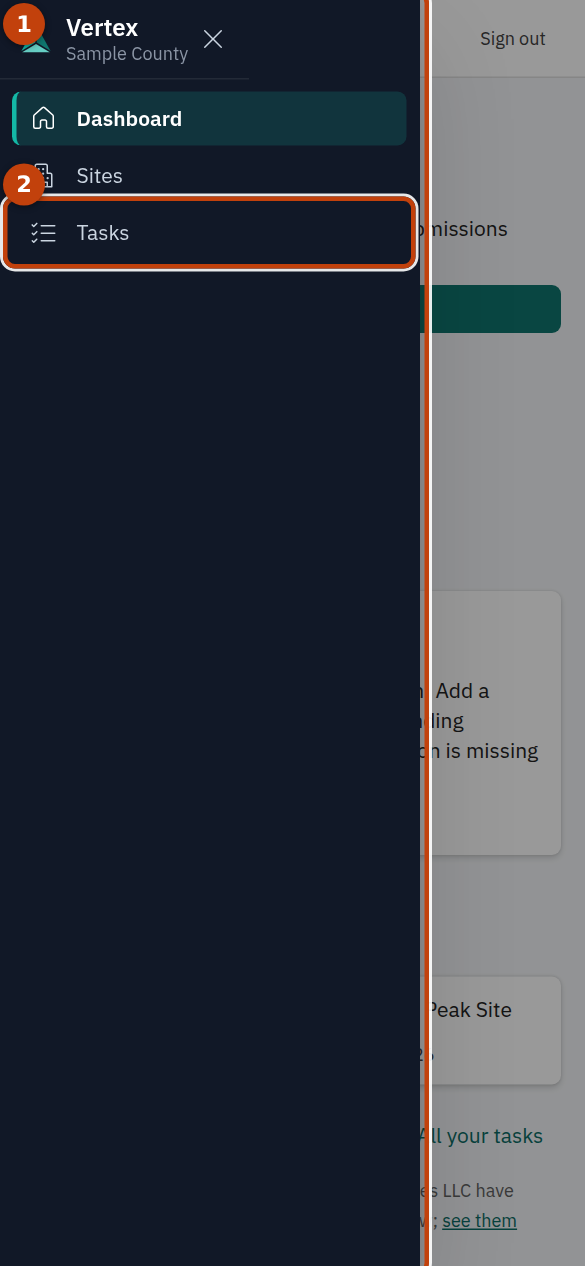
- 1. The menu, opened from the button at the top left; the X closes it.
- 2. The same pages as on a computer.
Questions and problems
I can't sign in
Use the work address that was added for you, with the account type (Microsoft or Google) it belongs to. Browsers often sign you into a personal account by habit; a private window avoids that. "Hasn't been invited, or has been deactivated" means the address isn't on the list: ask your administrator or Vendor Admin.
My file was refused
The file is bigger than 50 MB, or its type isn't one Vertex accepts, or its contents don't match its name (a scanned image saved with a .pdf name, for example). Save it in a supported format and try again. A file that fails the virus check can't be submitted at all; check it on your own computer.
The Submit button is disabled
On the form: no file has finished preparing yet, or a required field is empty. On a task: the task is under review (cancel the open submission first, or wait), or it waits on another task being approved first, or it doesn't need documents at all.
I don't see a task or site I expected
You only see tasks your organization is named as the vendor for. If a task is missing, the client's project team needs to assign it to you; ask your contact there.
I submitted to the wrong task
While it is still under review: open the task and Cancel the revision, then submit to the right task. After a decision: tell your contact on the project team, who can change the result.
Who do I ask?
For anything about a task or its review, your contact on the client's project team. For access and accounts, your Vendor Admin or the client's administrator.
This guide describes Vertex as of its current release. Screens may differ slightly as it is improved.
← All help